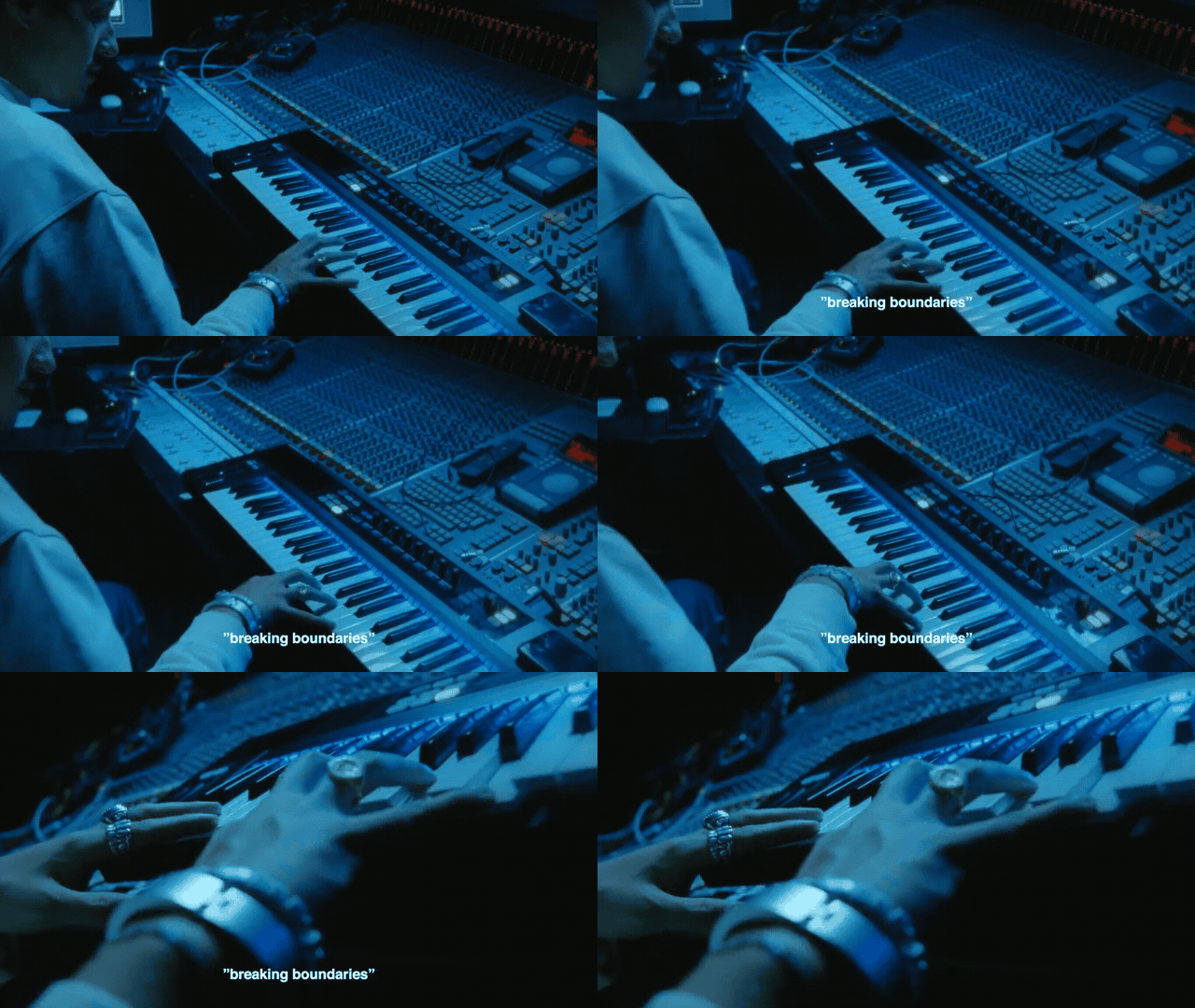
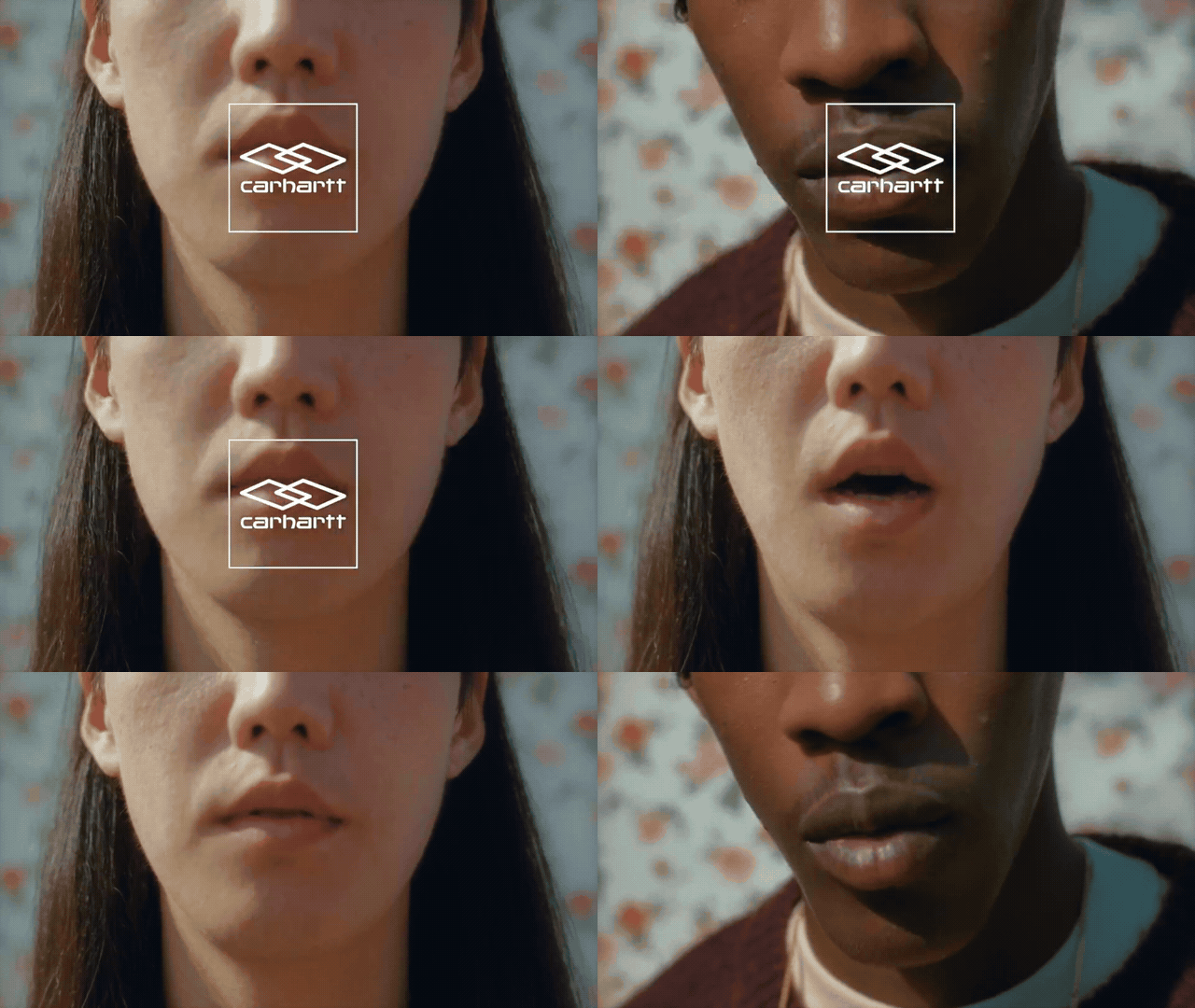
Sometimes the reference isn't the whole video — it's three seconds of it. GIF Maker pulls that moment out and keeps it as its own reference.
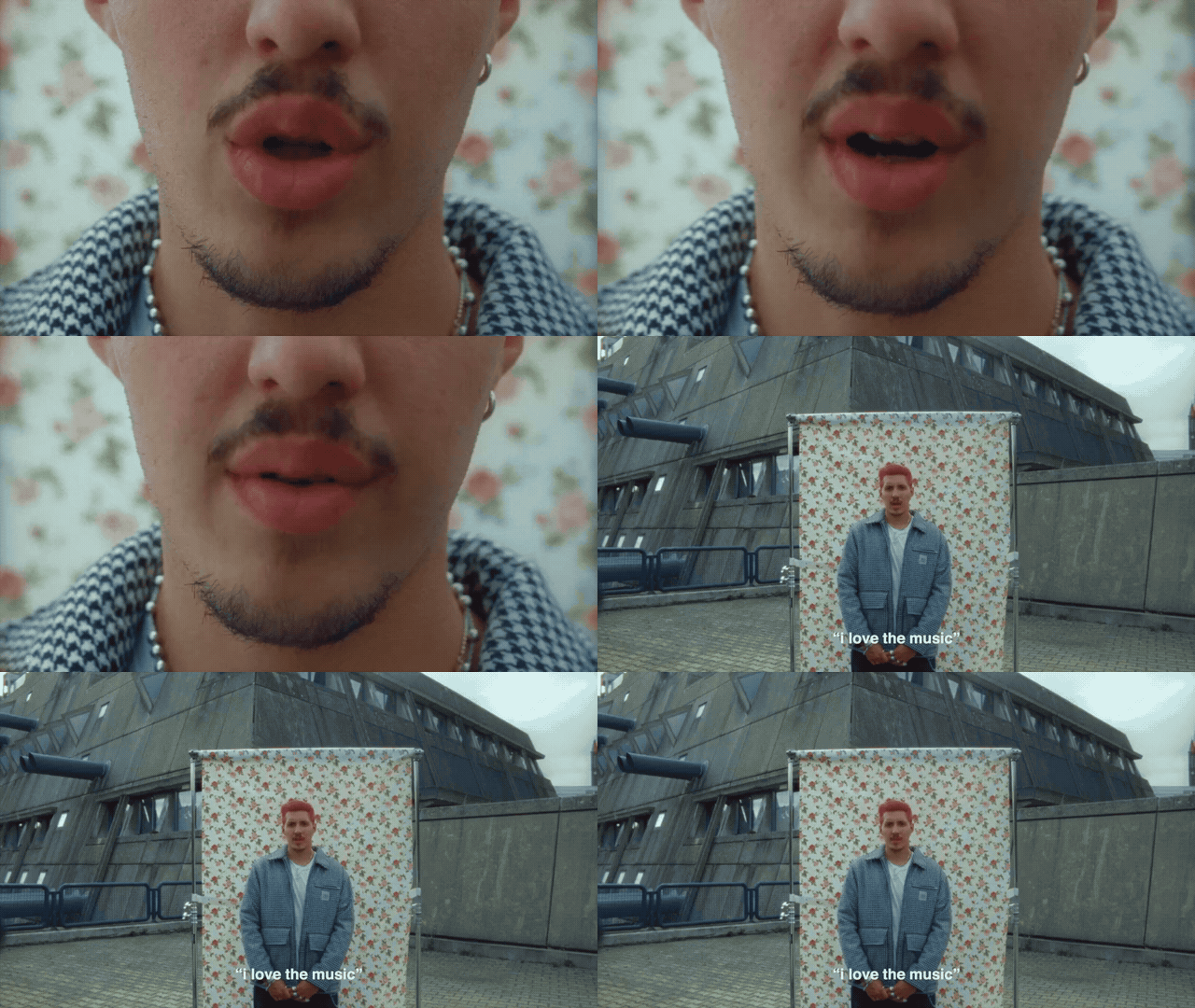
Ljubav x Carhartt WIP·Directed by Paul Herrmann, Shot by Tim Lorentzen·Found on vimeo.com







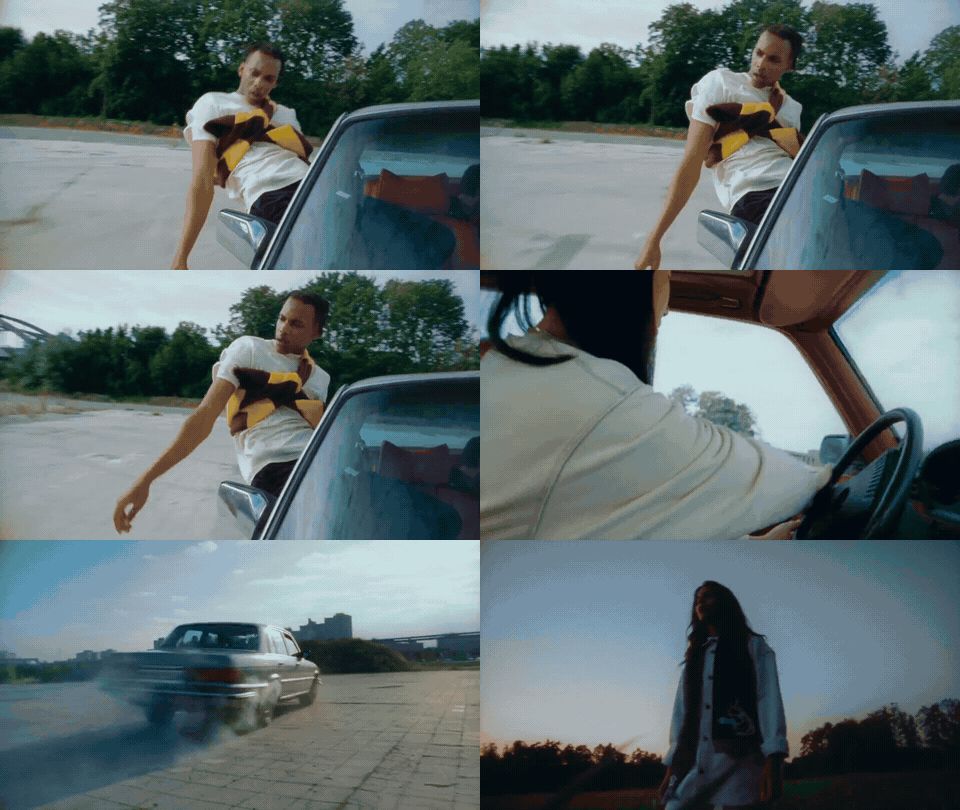
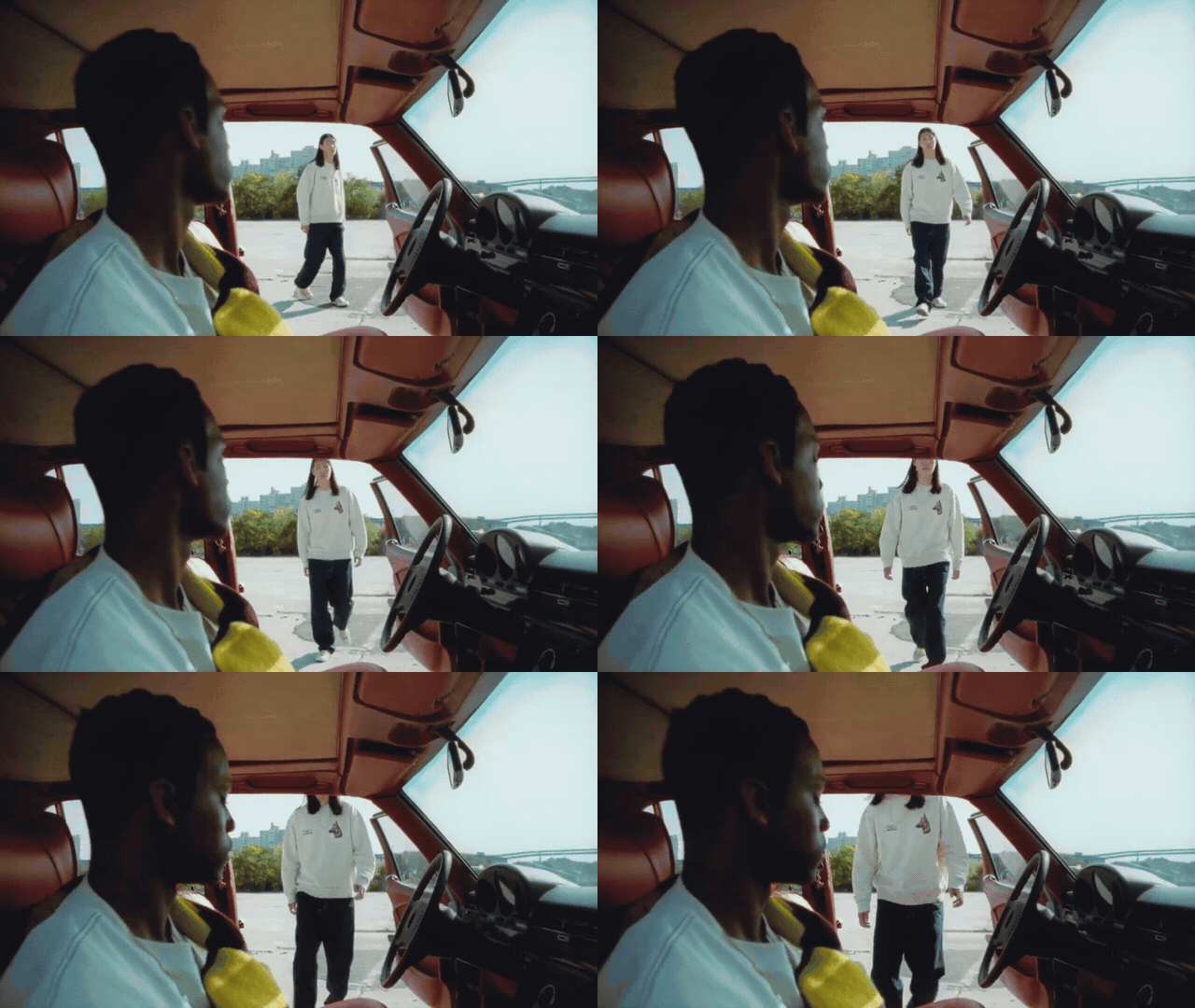

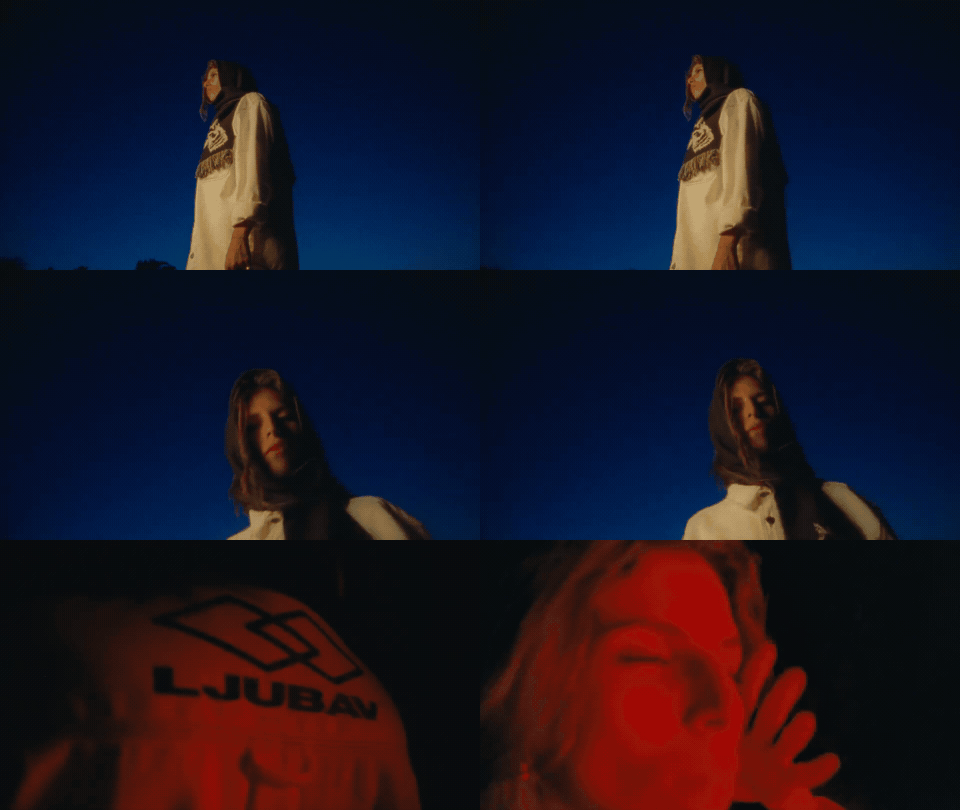
What you can make GIFs from
- A Vimeo, YouTube, or Instagram link pasted into GIF Maker (including from bloom.site/features/gif-maker after you sign up).
- Any video already in your library — a saved Vimeo link or an uploaded file. If it plays in Bloom, you can make a GIF from it.
See Ways to save for getting video into the library, and Stills & clips for still frames and video excerpts.
Making a GIF
Open a video and use Make GIF, or start from the GIF Maker tool. Bloom auto-detects moments and seeds the preview so you often start with a usable clip. Pick the moment closest to what you want, then refine it.
Trimming
Drag the in and out handles. For precision, use the keyboard:
- Space — play/pause
- I — set the in point
- O — set the out point
- Arrow keys — scrub frame by frame
Saving vs. downloading
- Save to your library — the GIF becomes a reference, indexed for AI search.
- Download — grab the file for decks, messages, or anywhere else.
You can do both.
Good to know: GIFs saved to your library count toward Creative Memory like any other reference, so "that shot where the camera whips around" is a search away.
Plan access
Basic and Starter include 3 GIF projects. Pro and Team include unlimited GIF Maker. Check Settings → Usage, and compare plans in Plans & limits.