Boards are where a pile of references and assets becomes a point of view. Make one per pitch, job, or direction you're developing.
References and assets
Everything in Bloom lands in your library. On boards, you work with two kinds of media:
- References — things you find and use for direction. Inspiration, craft examples, mood, treatment.
- Assets — things you own, made, or delivered. Uploads, selects, finals, footage, packages.
A board can hold references, assets, or both. Job boards tend toward assets; inspiration boards tend toward references. Adding something to a board never removes it from your library or from other boards.
Creating a board
Create a board from your boards page or on the fly while saving. Give it a name, and set a cover if you like — otherwise Bloom automatically uses the newest image or video on the board as its cover.
The free plan includes 10 boards; every paid plan is unlimited.
Adding to a board
References and assets get onto boards three ways:
- From the library — drag items onto a board, or select several and add them at once.
- While saving — the Chrome Extension and paste-link flows let you pick a destination board at save time.
- By text — tell Text to save where something goes: "add this to the lookbook board."
An item can live on multiple boards — adding it somewhere never removes it from your library or other boards.
Structure: sub-boards and clusters
Boards have two tools for depth, and they solve different problems:
- Sub-boards are boards nested inside a board — a real hierarchy, like folders. Use them when a job has distinct parts that deserve their own space: Pitch → Visual references, Pitch → Music, Pitch → Wardrobe. Sub-boards can nest as deep as you need.
- Clusters are tab-like groupings within a board. A cluster doesn't move anything — it groups sub-boards and references so you can filter the board by theme with one click, like tags. Use clusters to slice one collection multiple ways: by mood, by scene, by round of feedback.
Rule of thumb: if it needs its own page, make a sub-board; if it's a lens on the same page, make a cluster.
Arranging
Drag references and assets anywhere — Bloom keeps your manual order. Drag a selection onto empty space to spin up a new board or cluster from it. Group, reorder, and refine until the board reads the way you want it to, because the arrangement carries into presentations.
Board patterns
Boards are flexible — these are two patterns teams use often.
Inspiration board
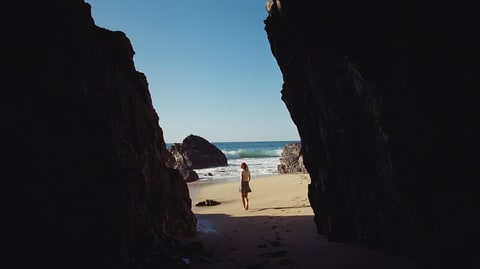
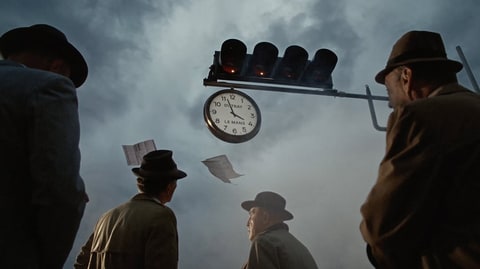
A shared board for taste and treatment, not a specific job. Save references from Instagram, Vimeo, ShotDeck, and the extension here when they're not tied to a pitch yet. Use clusters as lenses — lighting, casting, graphic, motion — instead of exploding into a dozen boards.

Production Inspo
 Tech
Tech Music
Music Fashion
 Sports
 Documentary
 Automotive
 Narrative
 Beverage
 Commercials
 Abstract
 Healthcare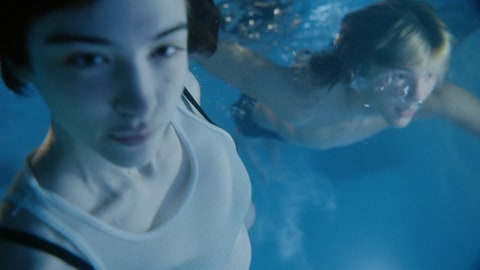









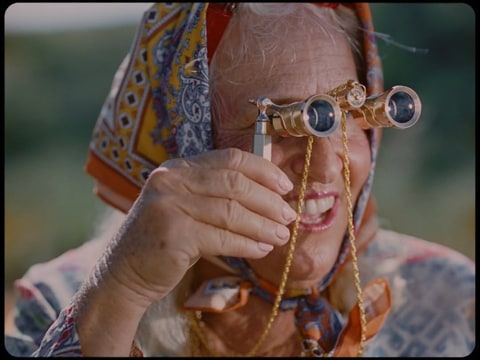

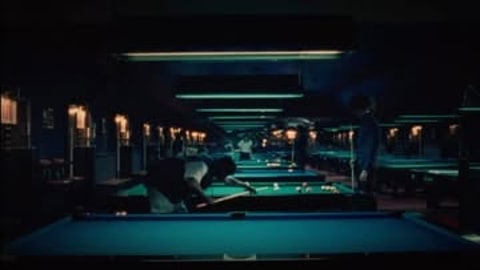




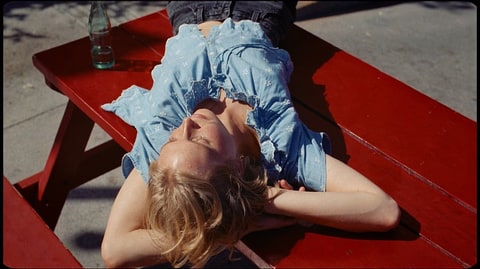









The loop that keeps it useful:
- Save from the Chrome Extension or Text to save with this board as the destination.
- Triage Unsorted onto it when something is generally useful.
- Pull from it onto a job board or ask a creative agent to build a deck when a pitch starts.
References saved here become company knowledge that compounds — taste your whole team (and agents) can draw on, not inspiration trapped in a camera roll.
Work board
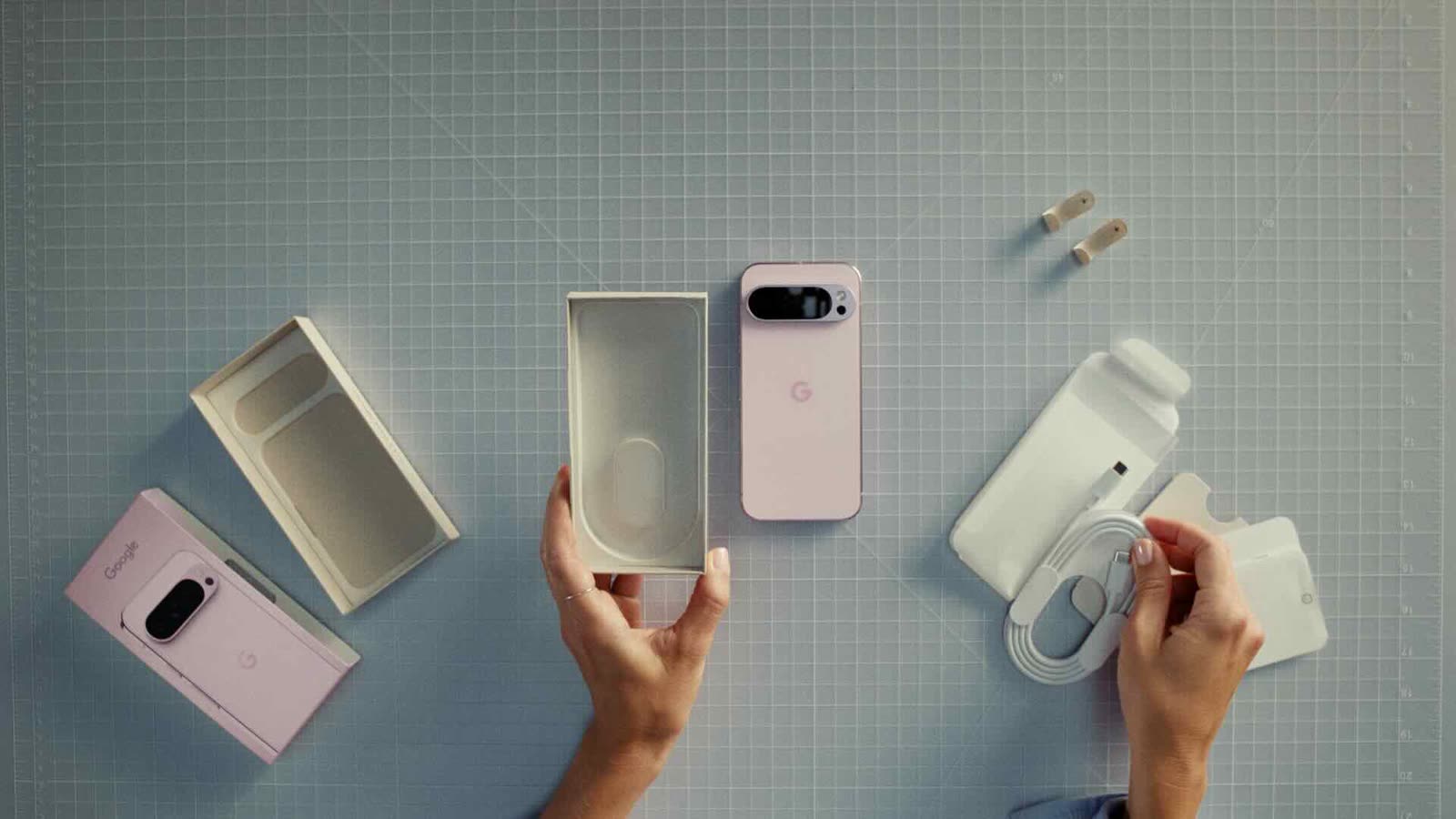
One board per job, pitch, or client. Use sub-boards for distinct parts and clusters for status (pitching, in production, delivered) if you want a tabbed view without moving cards.

Projects
23 boards, 2743 assets
AddCognition

Poke.com

Cobot
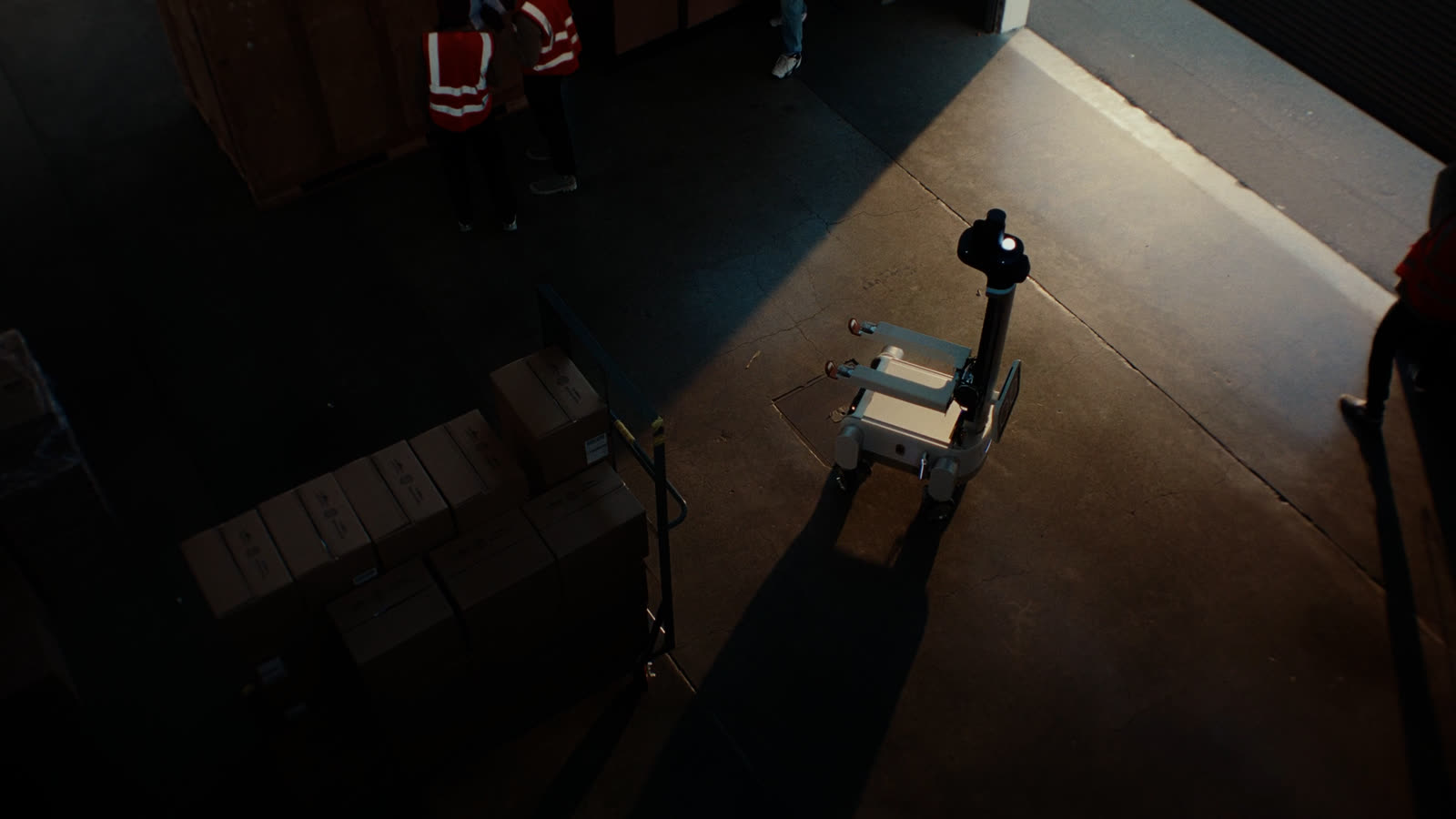
Kicker
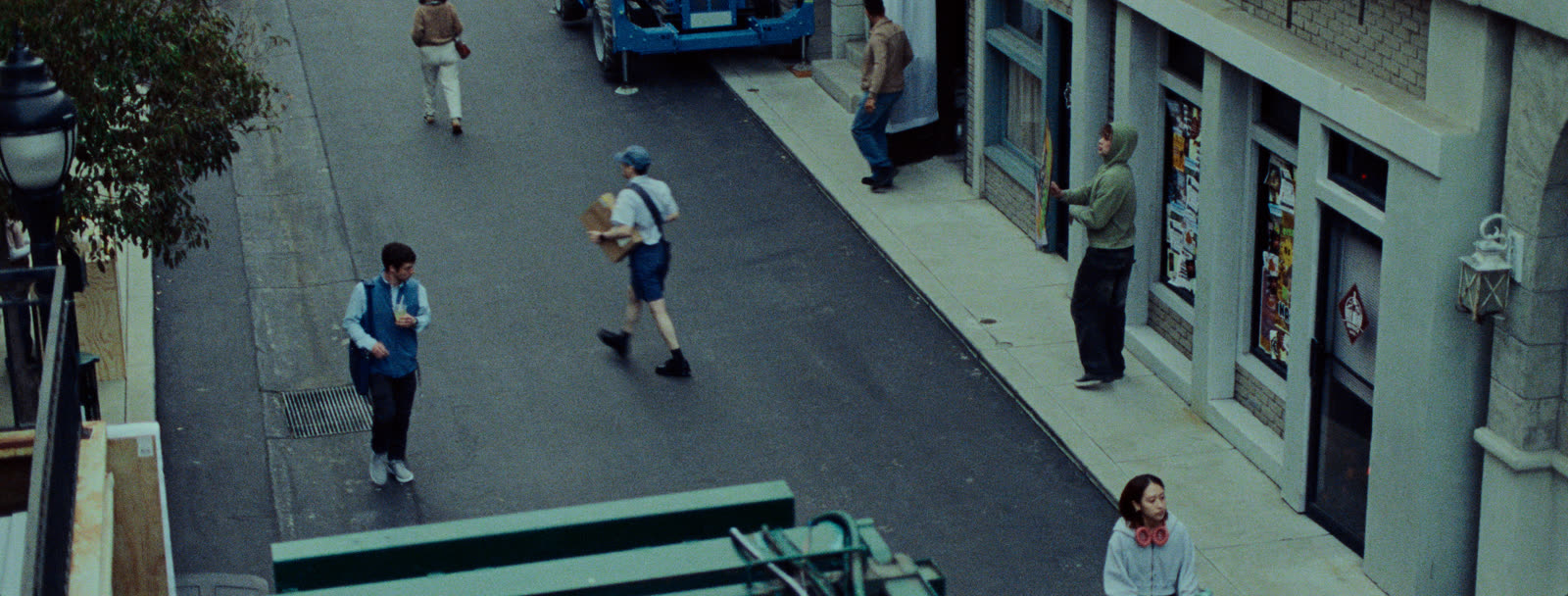
Okara
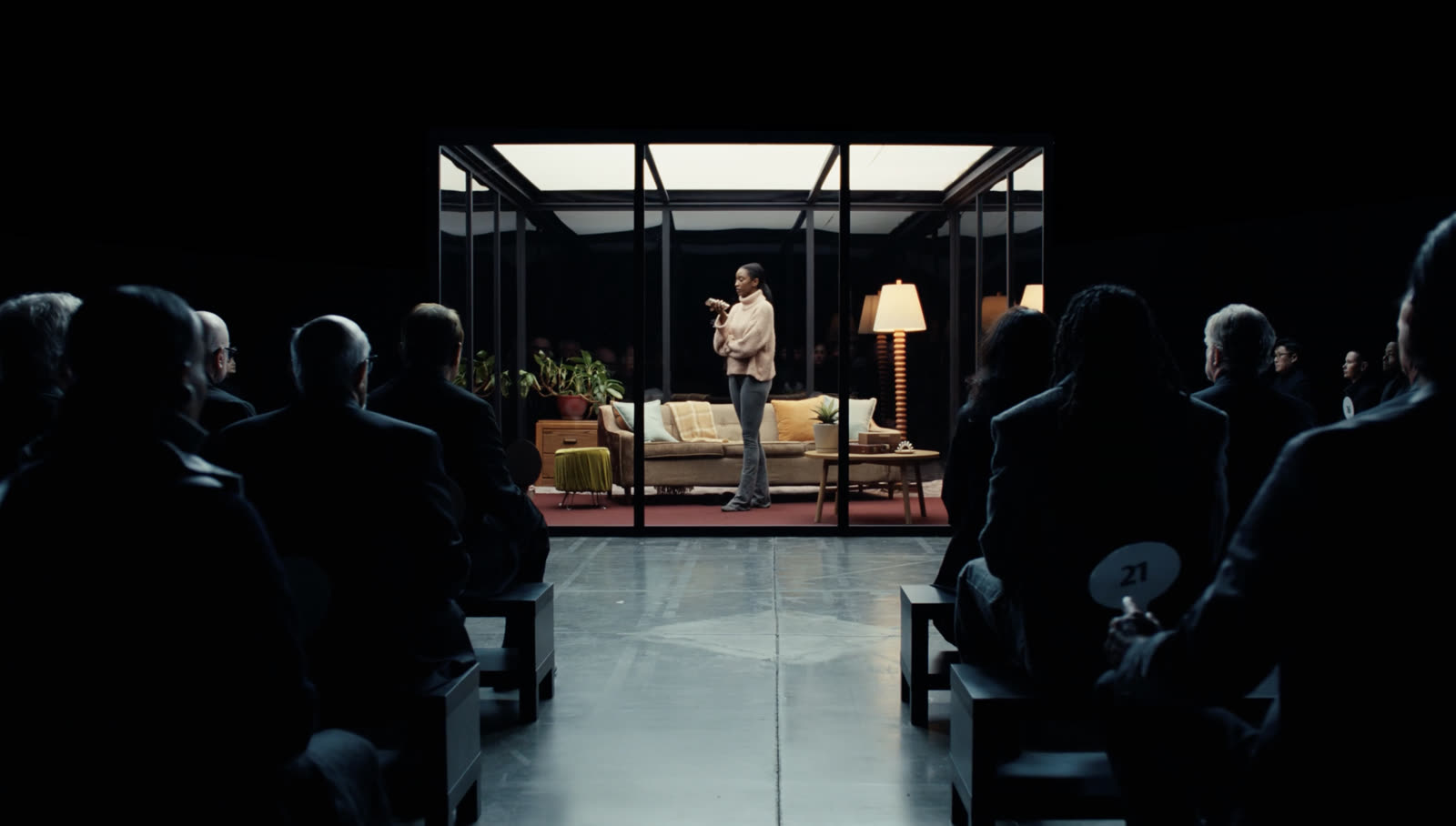
Forus
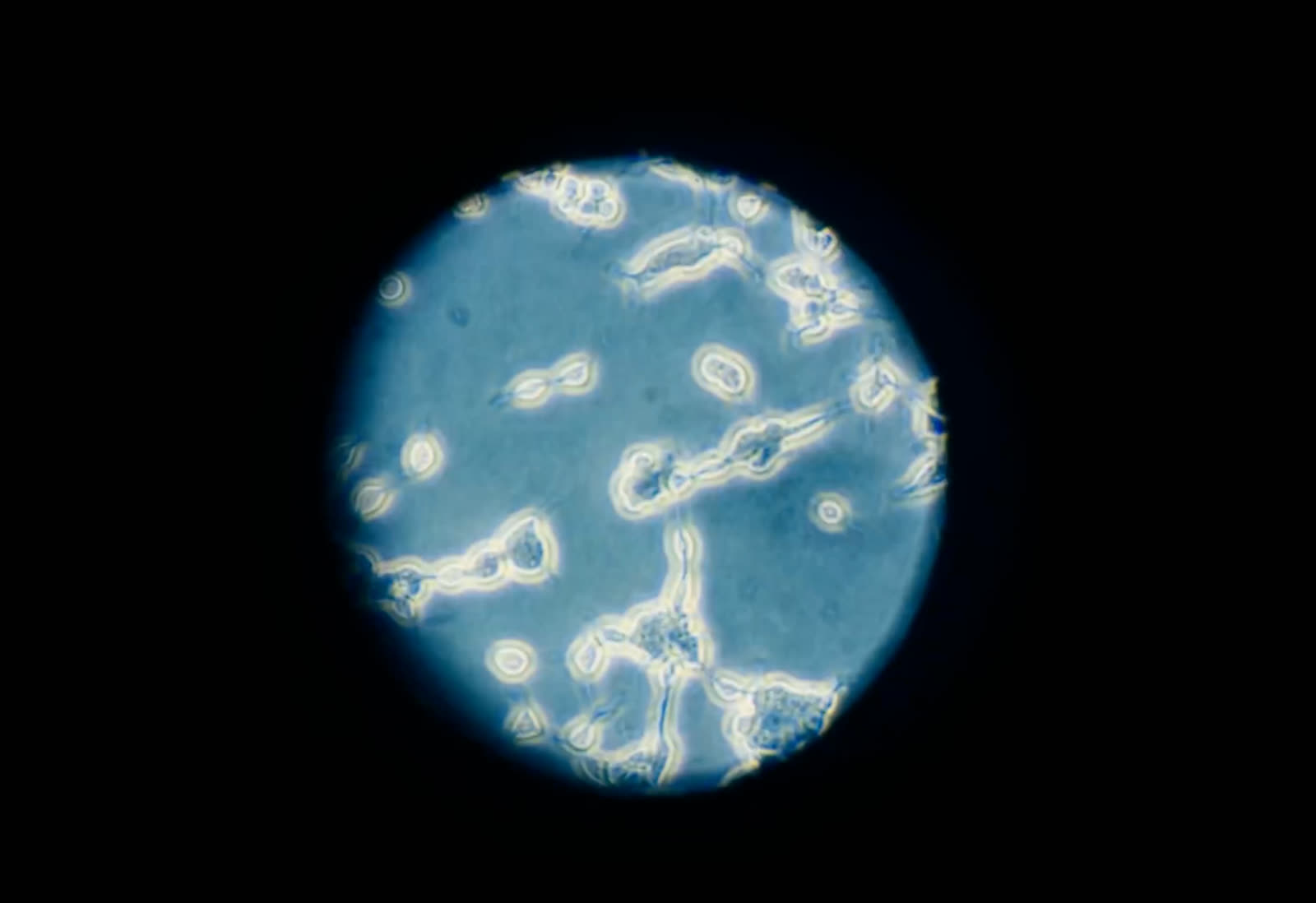
Forus
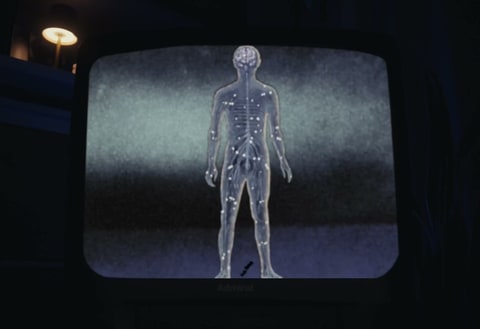
AGI Inc.
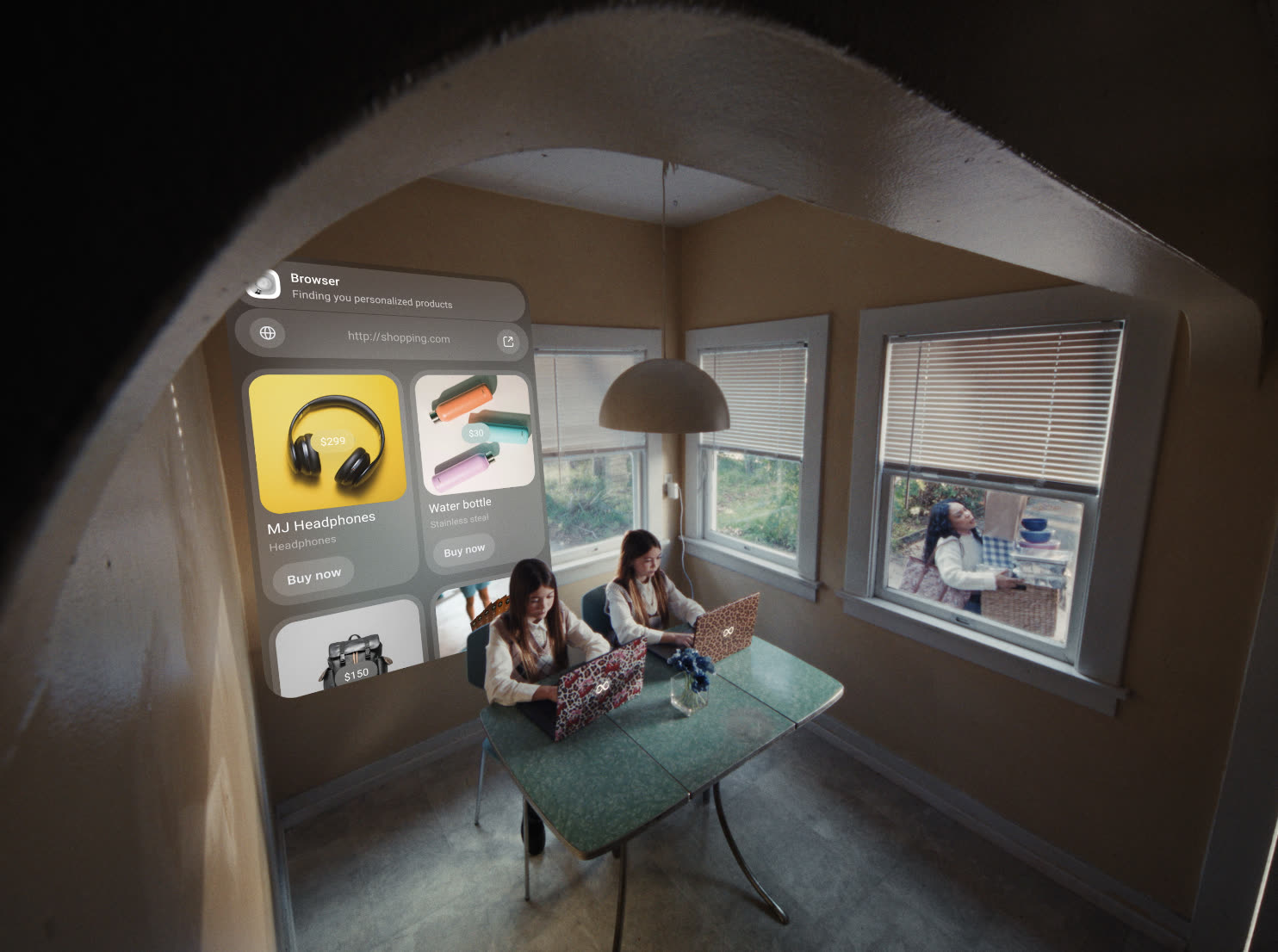
Endra
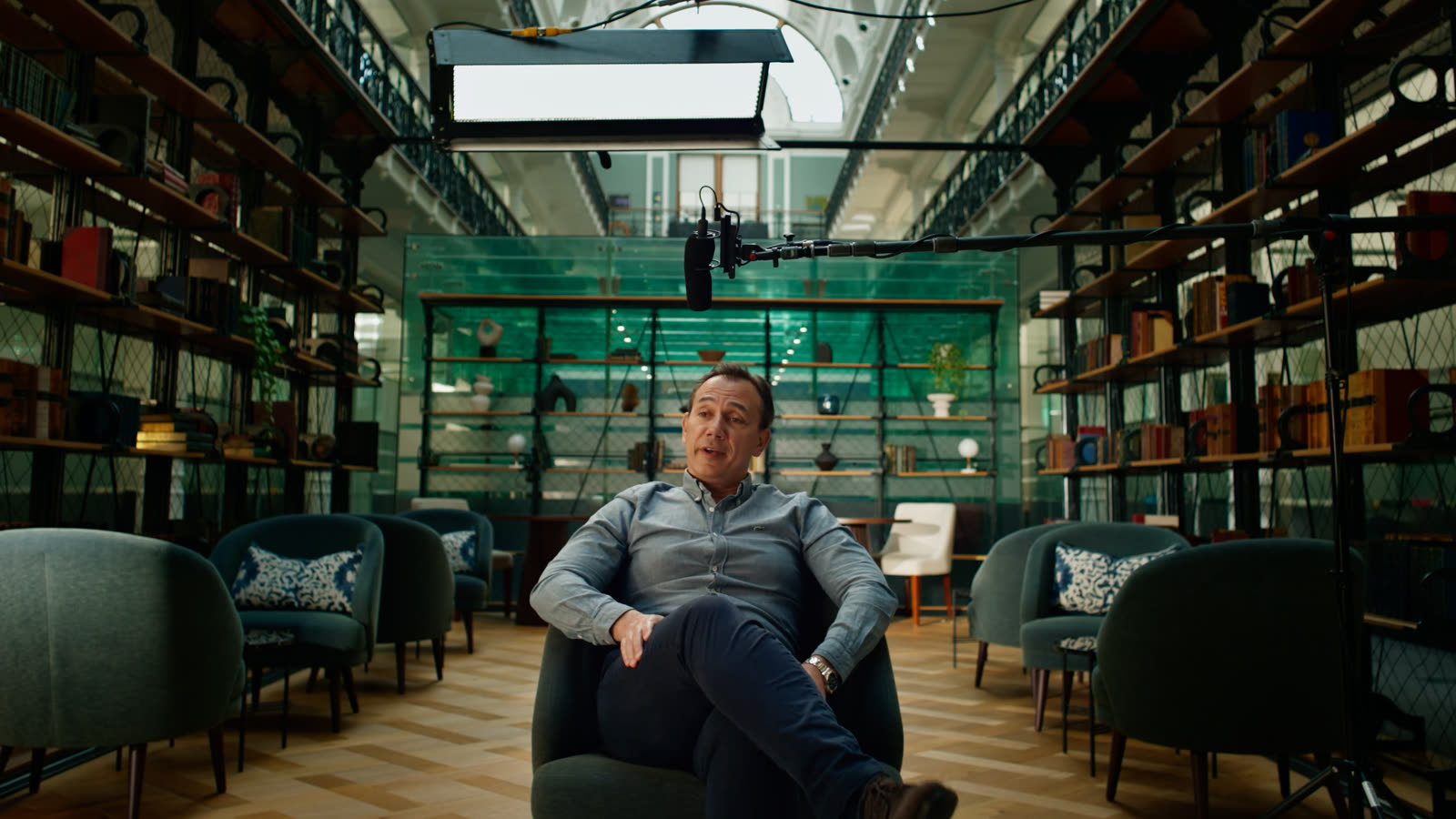
Folk
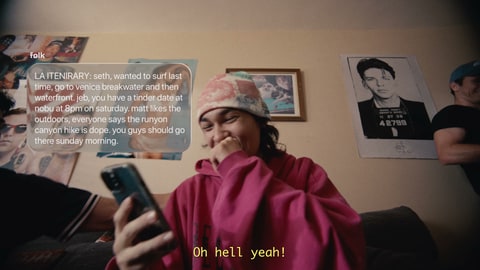
Player Zero
buycycle
Keep covers and titles consistent so the grid scans like a production board. Agents and reels find work faster when boards are named and structured — a well-kept work board is what lets them pull the right selects and finals instead of rummaging through unsorted uploads.